Create Property
We want to forward an Experience Event out to usually to a third party (but doesn't have to be). This is usually used when a copy of an Event is needed in real time to notify a third party under specific circumstances (e.g. notifying Google, Meta or TikTok about a purchase).
Reminder: A Property contains all the extensions, data elements and rules needed to decide what to forward and where to
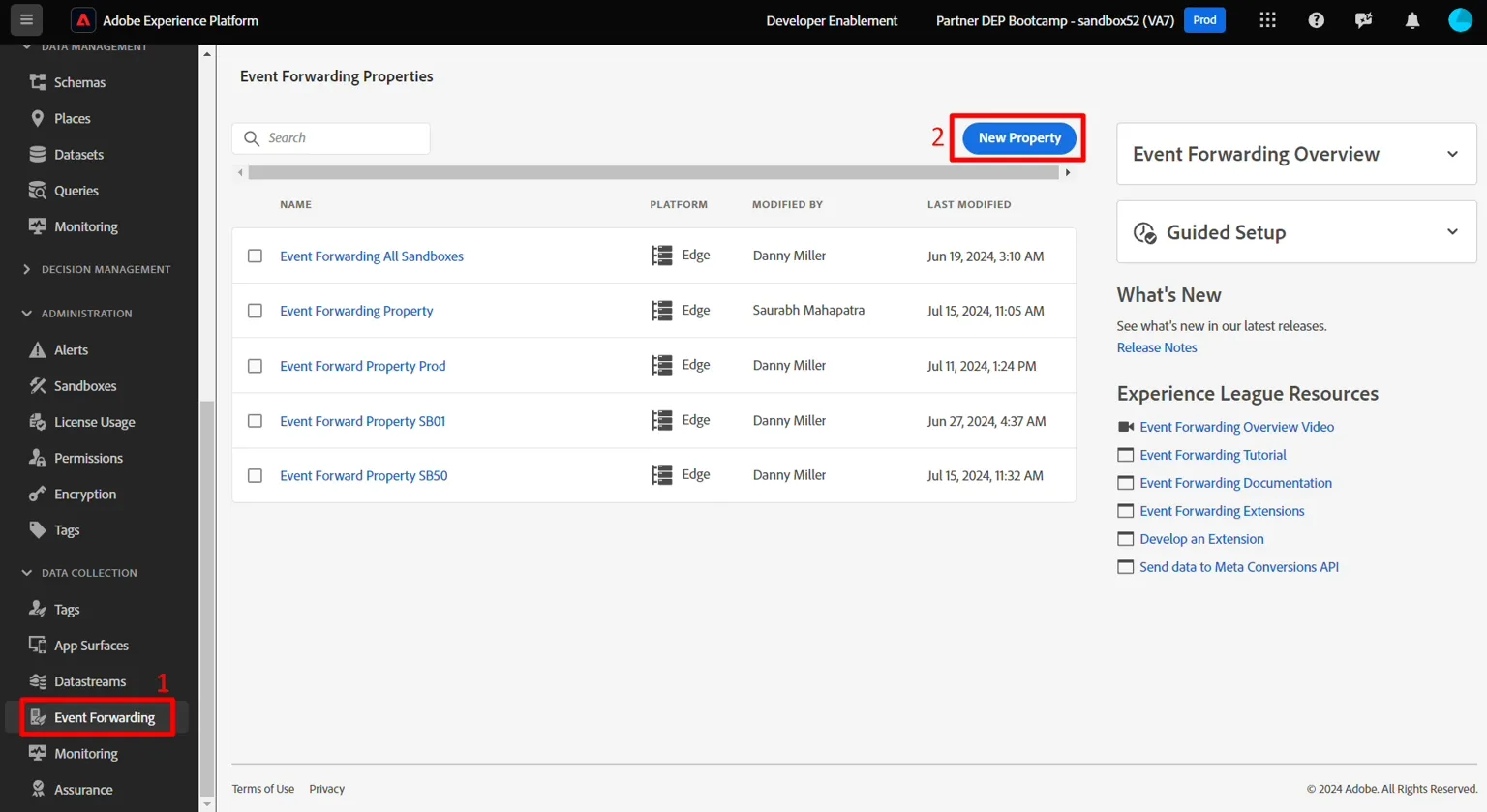
- In the left rail click on Event Forwarding
- Then click on New Property
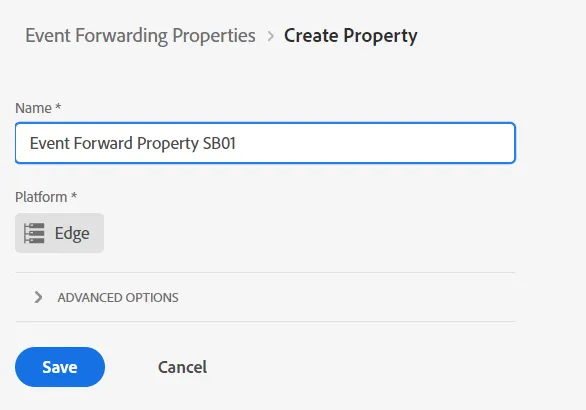
3. Update the property name using the following formula: Event Forward Property SB + [sandbox number]. Your final name would look something this then: Event Forward Property SB01
4. Click Save when done
Install Extension
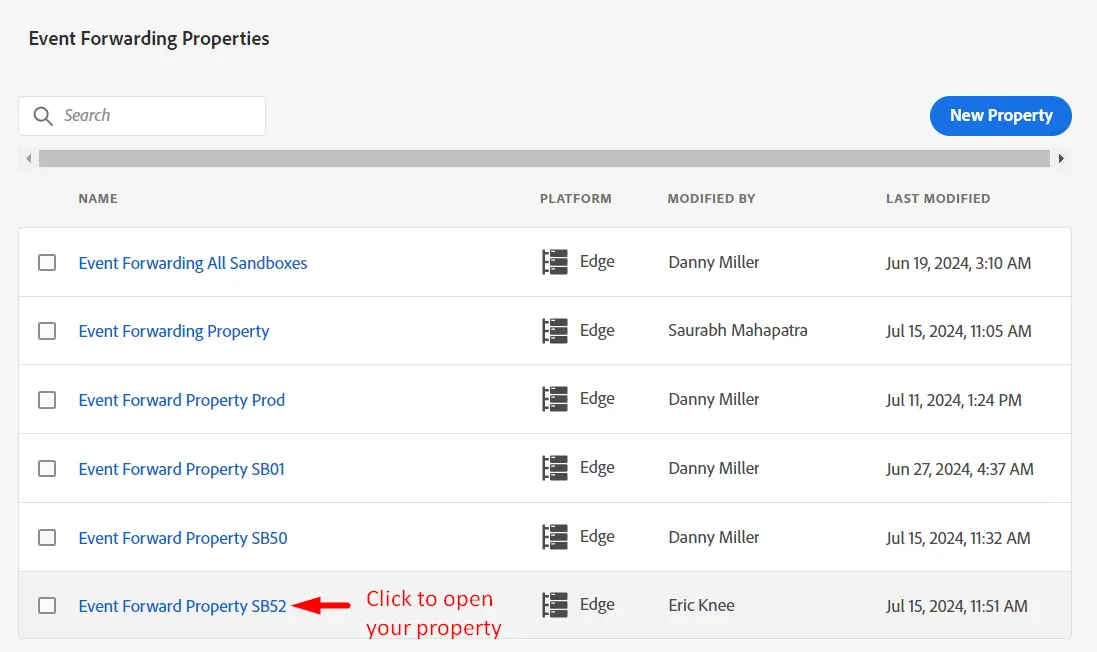
- Click on the Event Forwarding Property you just created
2. You should see a screen like below. Click on Extensions.
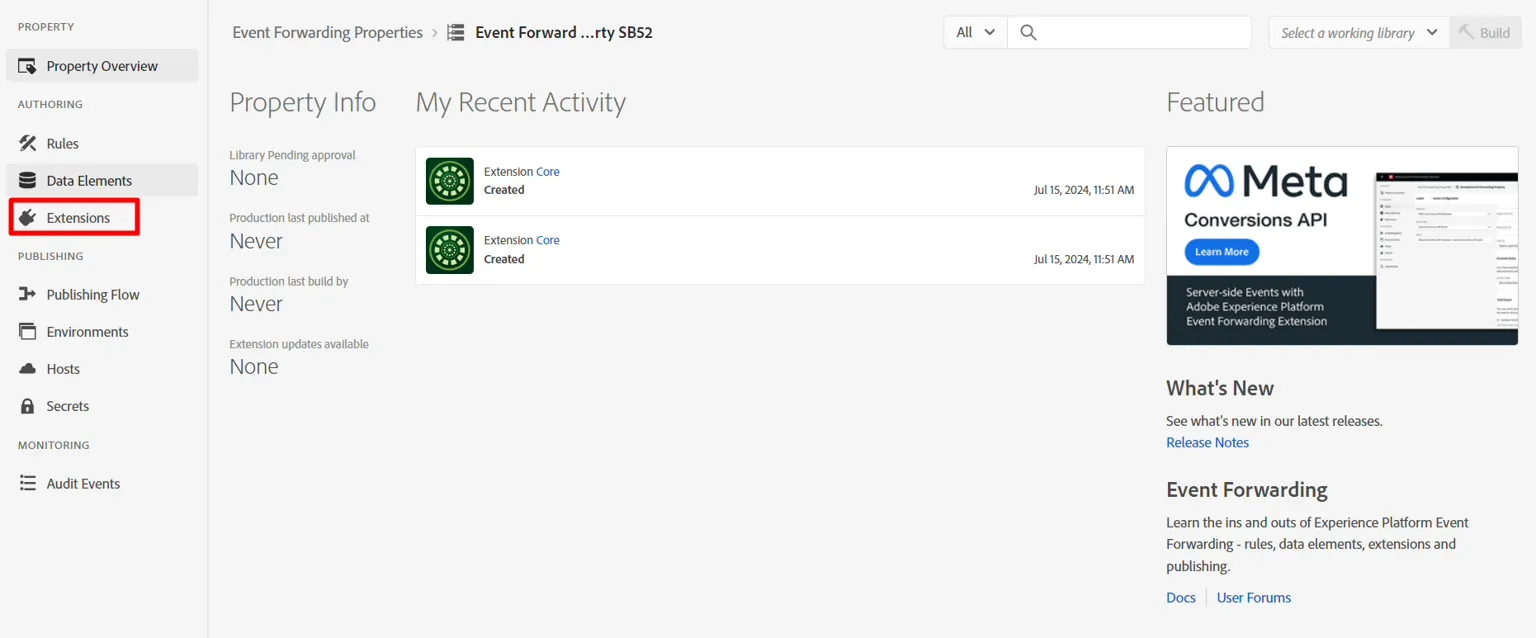
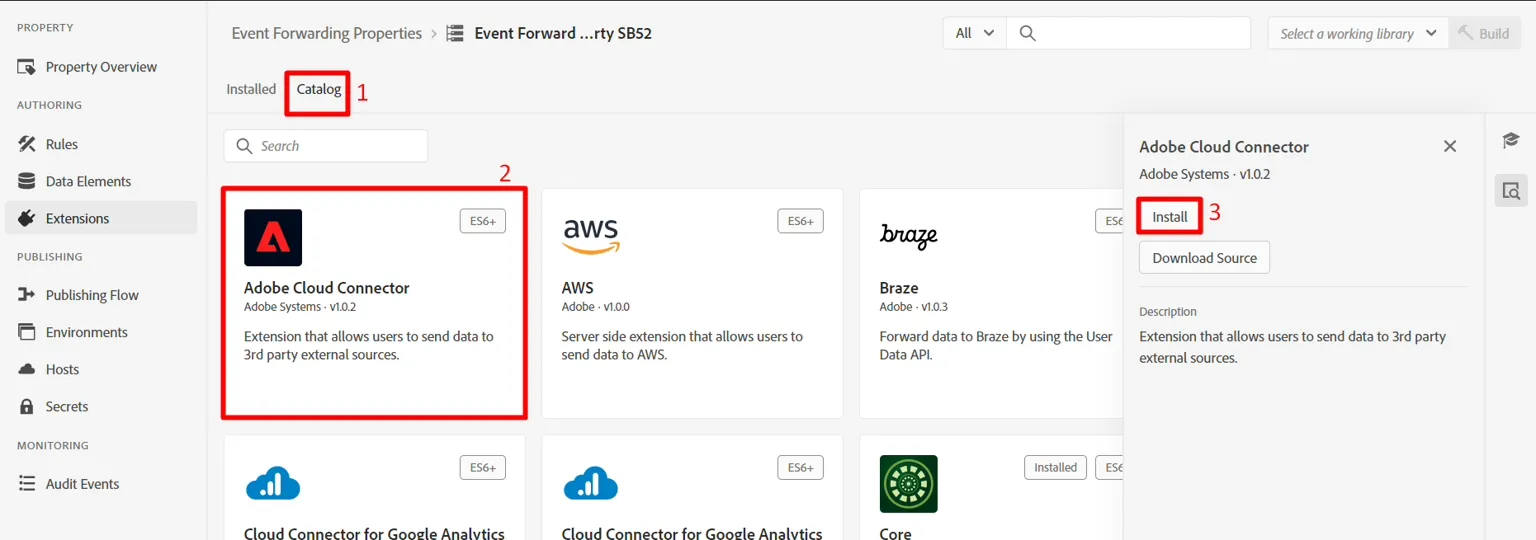
3. Install the extension Adobe Cloud Connector by doing the following:
- Click on Catalog in the top nav
- Click on the Adobe Cloud Connector card
- In the right rail click on the Install button
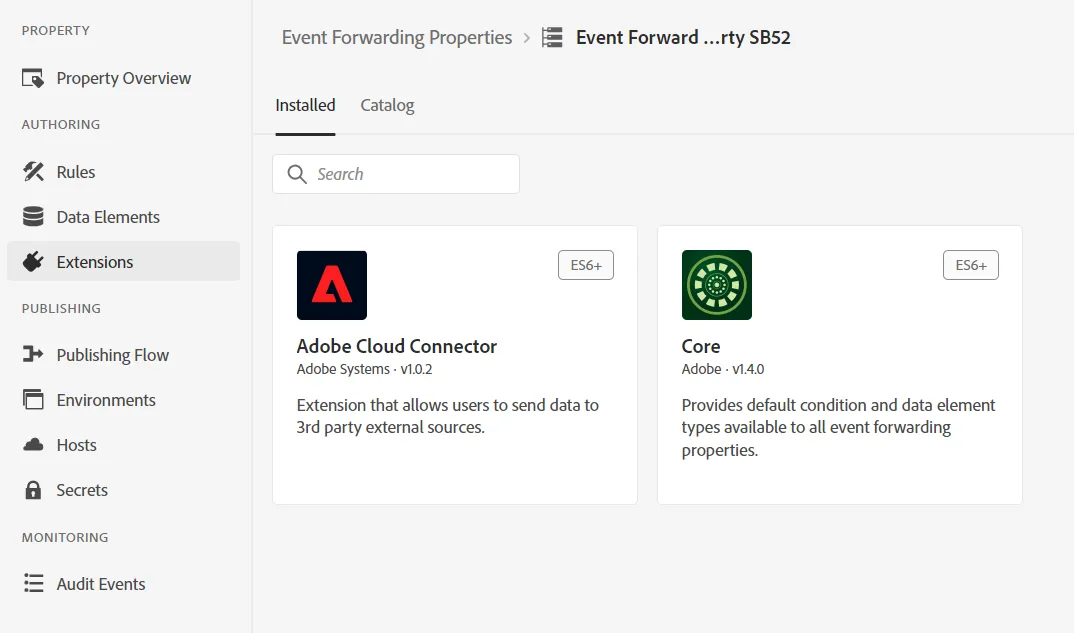
After clicking install you should see the extension show under the Installed extensions for your property as shown below
Create Data Element
A Data Element references the incoming event and can parse it into multiple individual components if needed
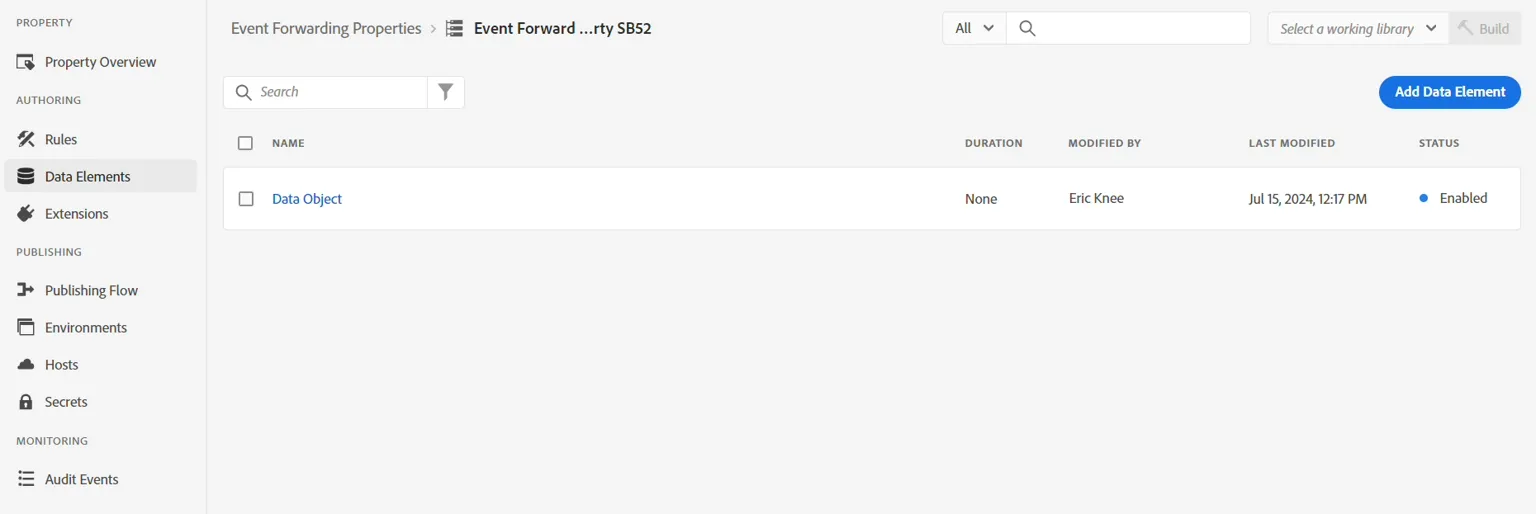
- In the left rail click on Data Elements
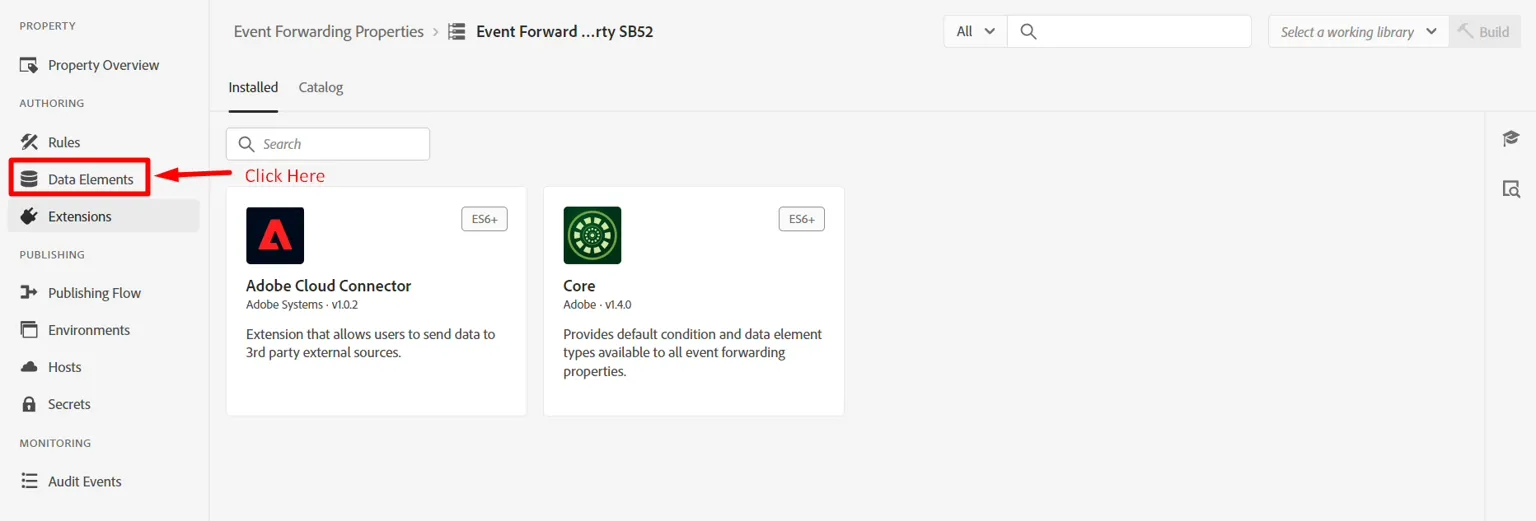
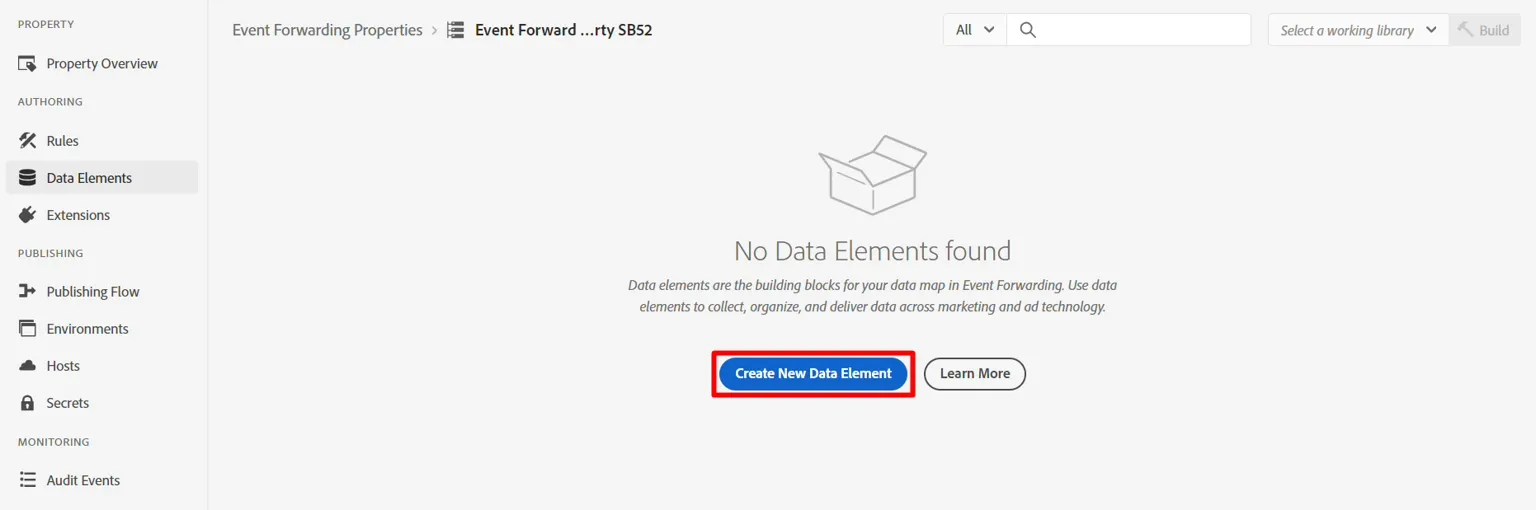
2. Click on the Create New Data Element button
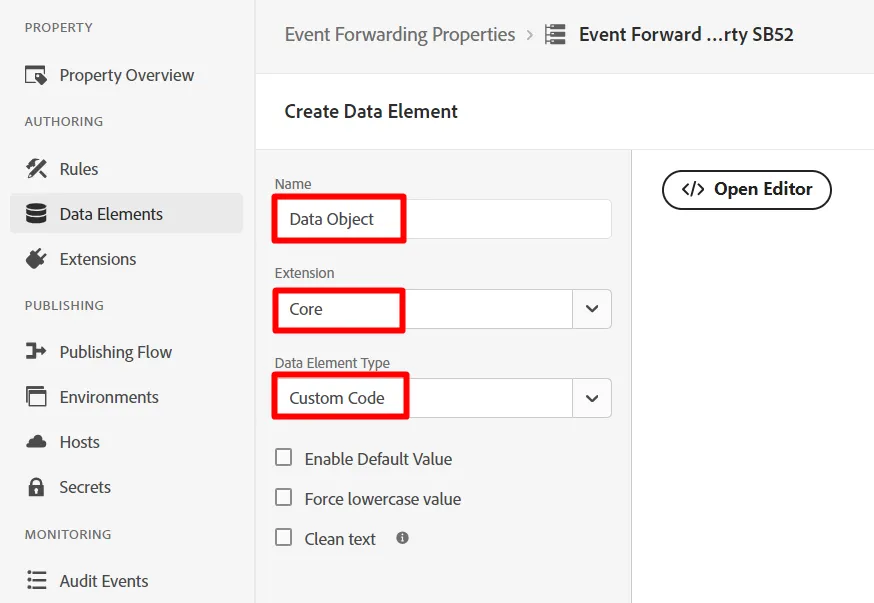
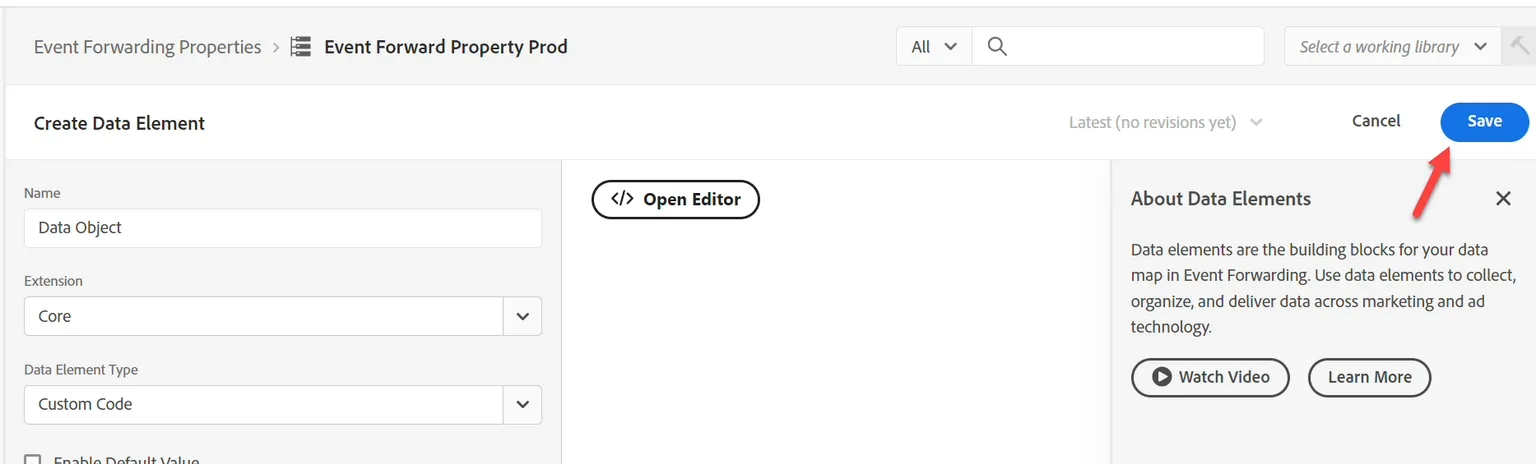
3. Configure the new data element with the following information:
Element Type | Value to Configure |
|---|---|
Name | Data Object |
Extension | Core |
Data Element Type | Custom Code |
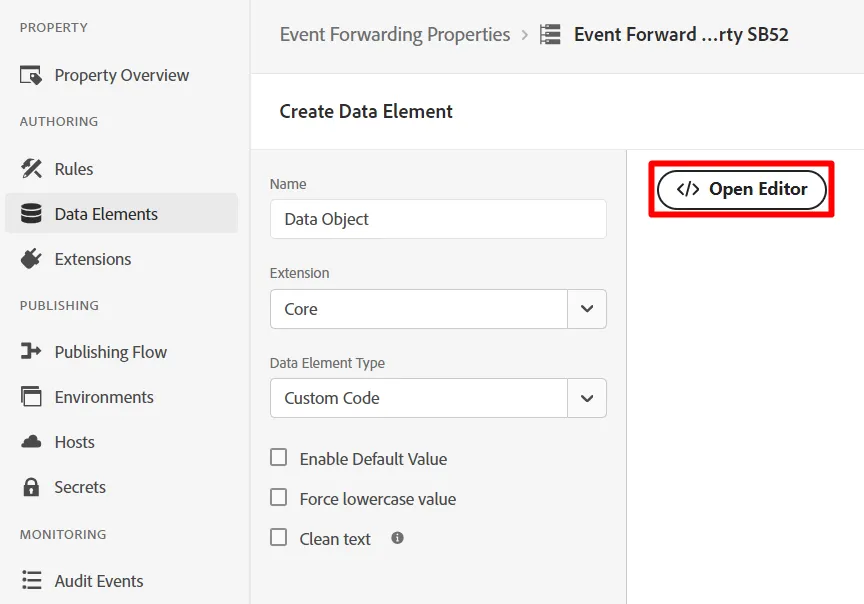
4. Click on the button Open Editor to add the following custom code:
5. Add custom code to the editor like so and save it
var xdm = arc?.event || '';
return xdm;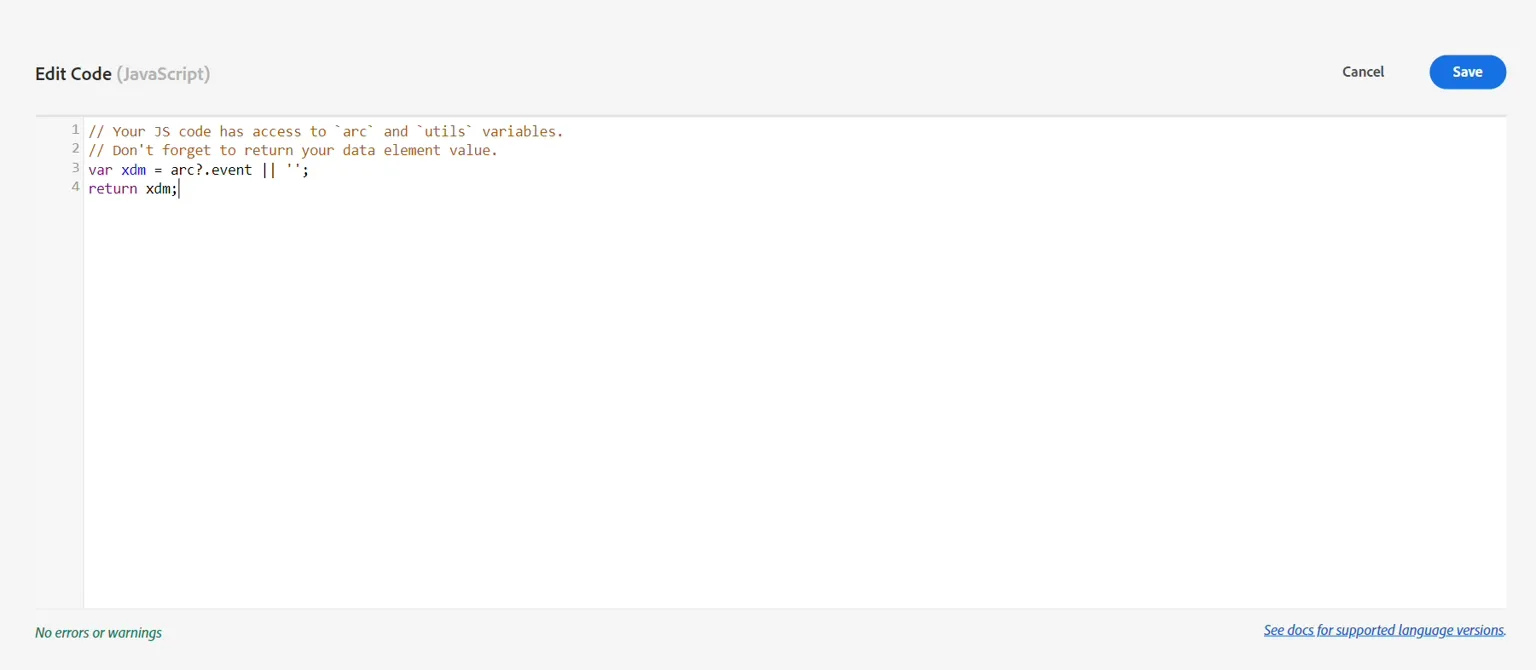
This is grabbing the whole xdm object without doing any translations to the payload. If needed we could parse out each individual pieces within the XDM object (e.g. page name, purchase amount), into one data element per field. The reason for doing this might be if there is transformation of the structure to a different structure
6. Click the Save button to save your data element.
When done you should see the following screen confirming your data element has been added:
Create Rules
A Rule contains:
- Conditions on what to forward
- Actions that can transform the payload and define where to send it
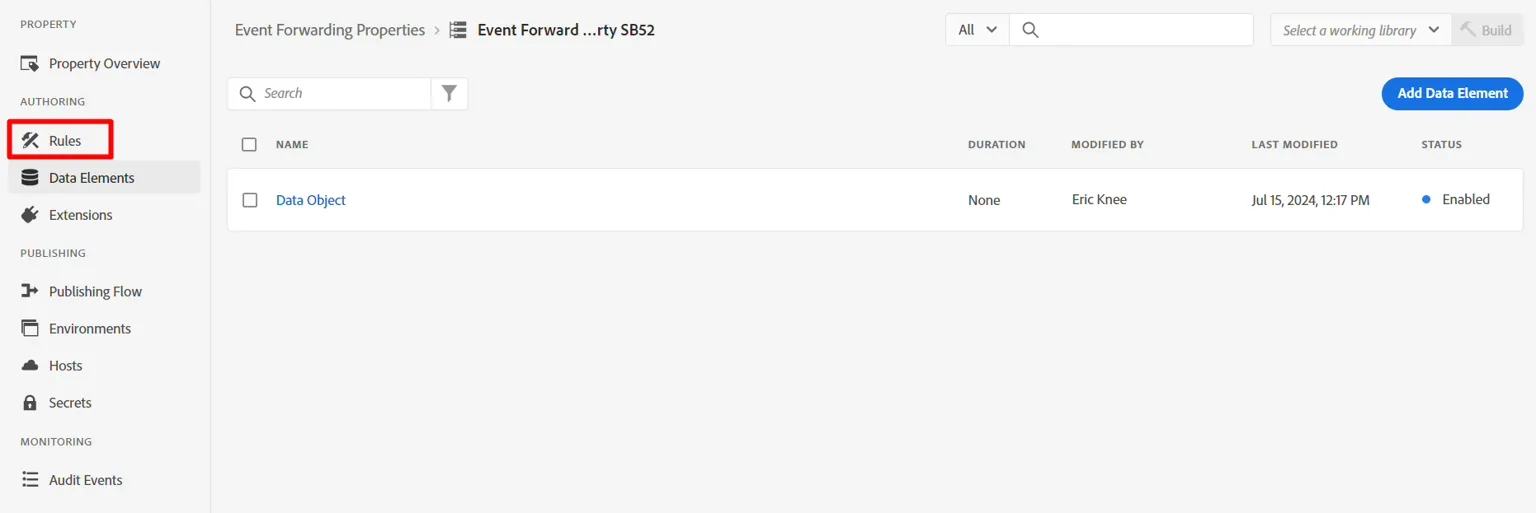
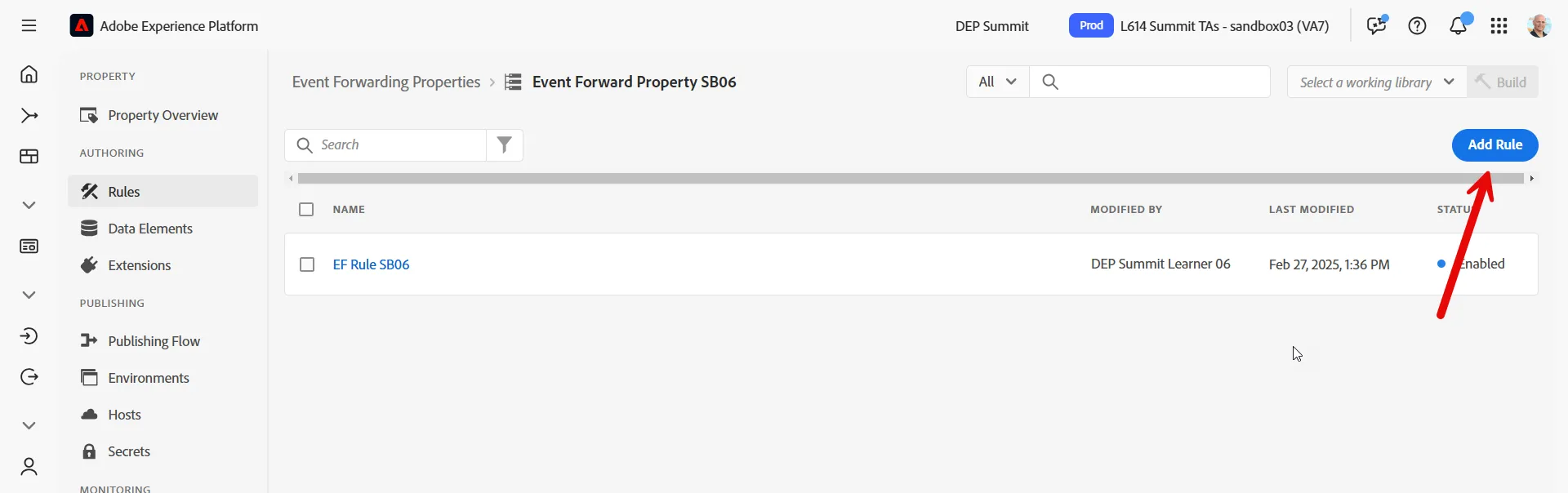
- In the left rail click on Rules
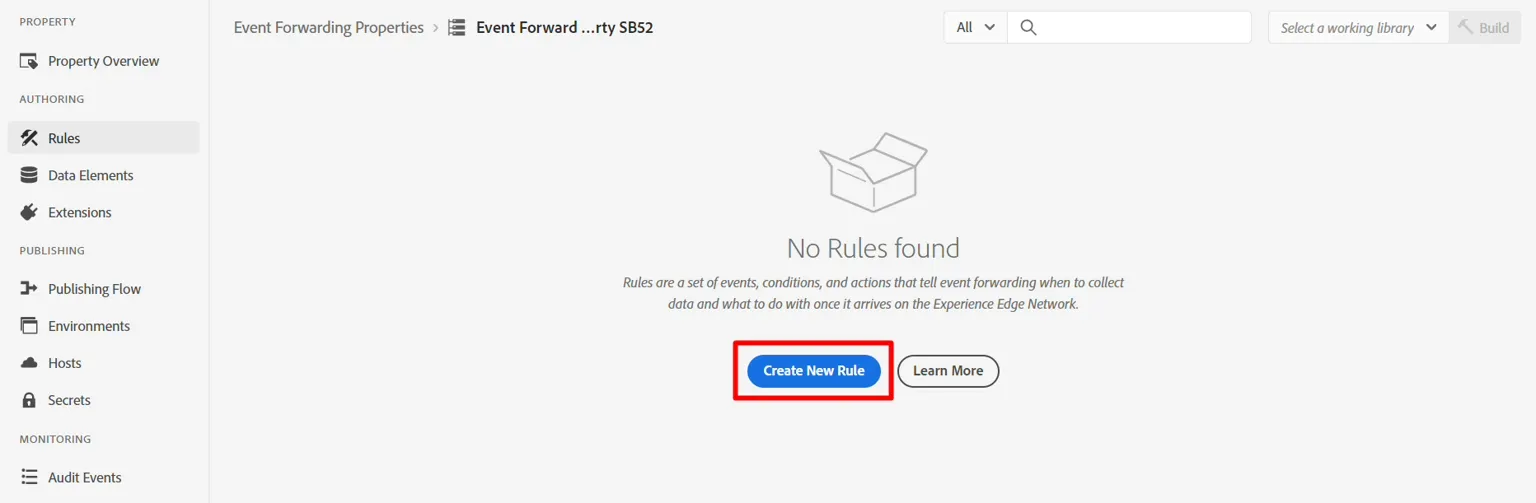
2. Then click on Create New Rule or Add Rule
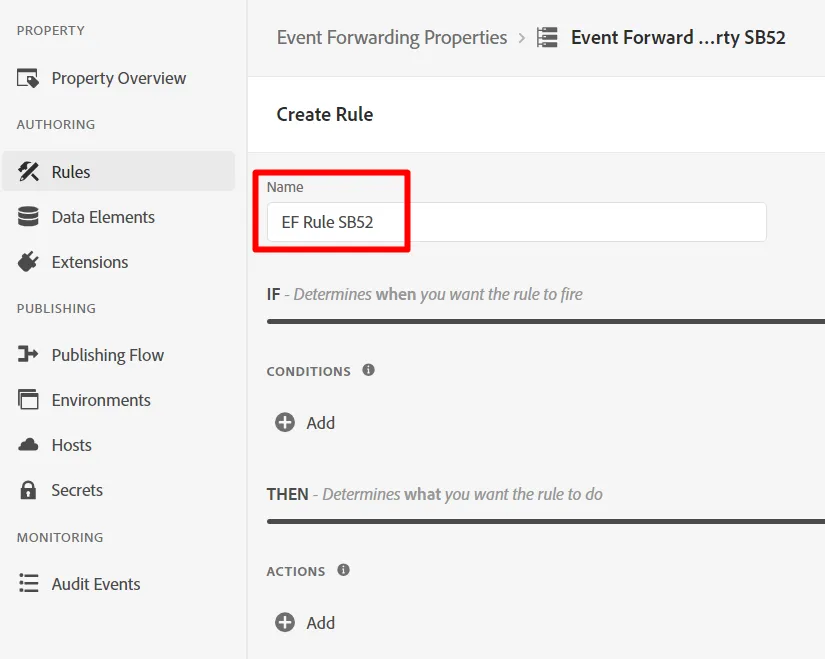
3. Update the rule name using the following formula: EF Rule SB + [sandbox number]. Your final name would look something this then: EF Rule SB01
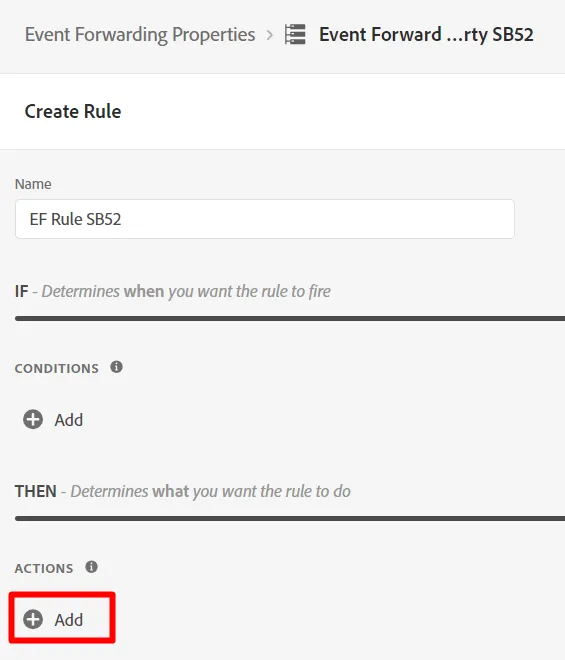
5. Add an Action to your rule by click on the (+) sign to add a new action
Get Webhook URL (to use in action)
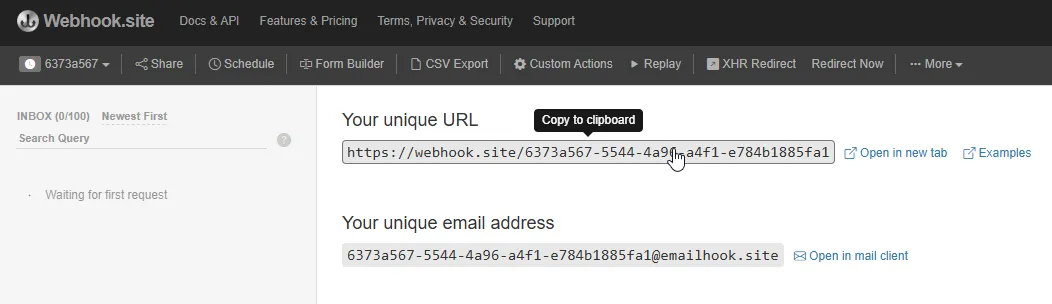
We are going to use a webhook here so we can see if the data has arrived at the Destination we are sending to. In a real world scenario, we would log into that destination instead and use their tools to see what has arrived.
- Use the same one as before. If you need to get back to it
- Copy the unique URL you see and save it somewhere safe
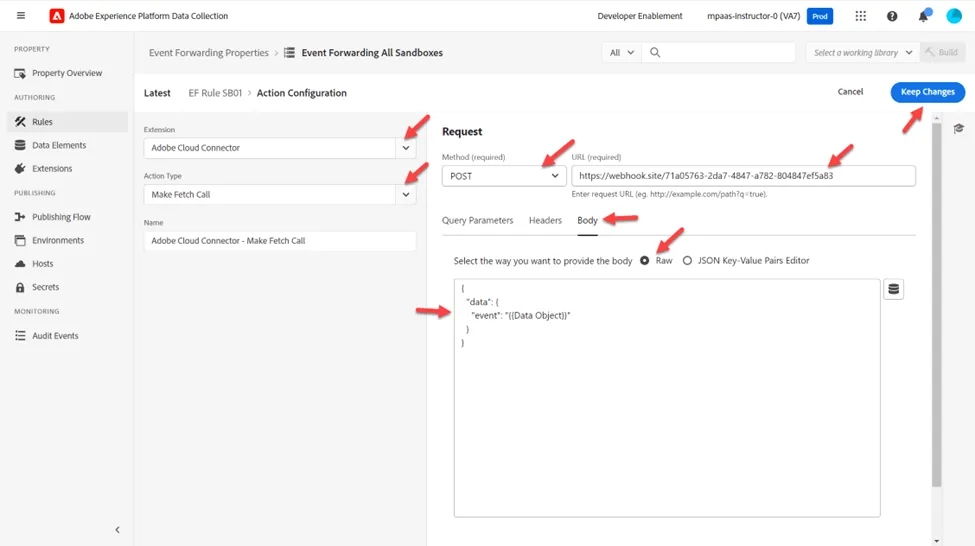
3. Configure your action with the following information:
Setting | Value |
|---|---|
Extension | Adobe Cloud Connector |
Action Type | Make Fetch Call |
Method | Post |
URL | Use the same webhook URL you used when setting up your streaming destination. You can find it by opening a new tab in the and navigating to Destinations -> Browse |
Body | Raw |
Body Data | { "data": { "event": "{{Data Object}}" } } |
The {{Data Object}} referenced here is the Data Element we created earlier. Here the requirement by the downstream system was it wanted to wrap the event in a data object with an event object. You could put any formatting here.
If we had split {{Data Object}} into multiple fields (e.g. page name, purchase, etc.), we could transform the JSON structure placing each field in the desired spot, giving us more control over matching the destination.
When you are done validate your screen looks similar to below and then click on Keep Changes
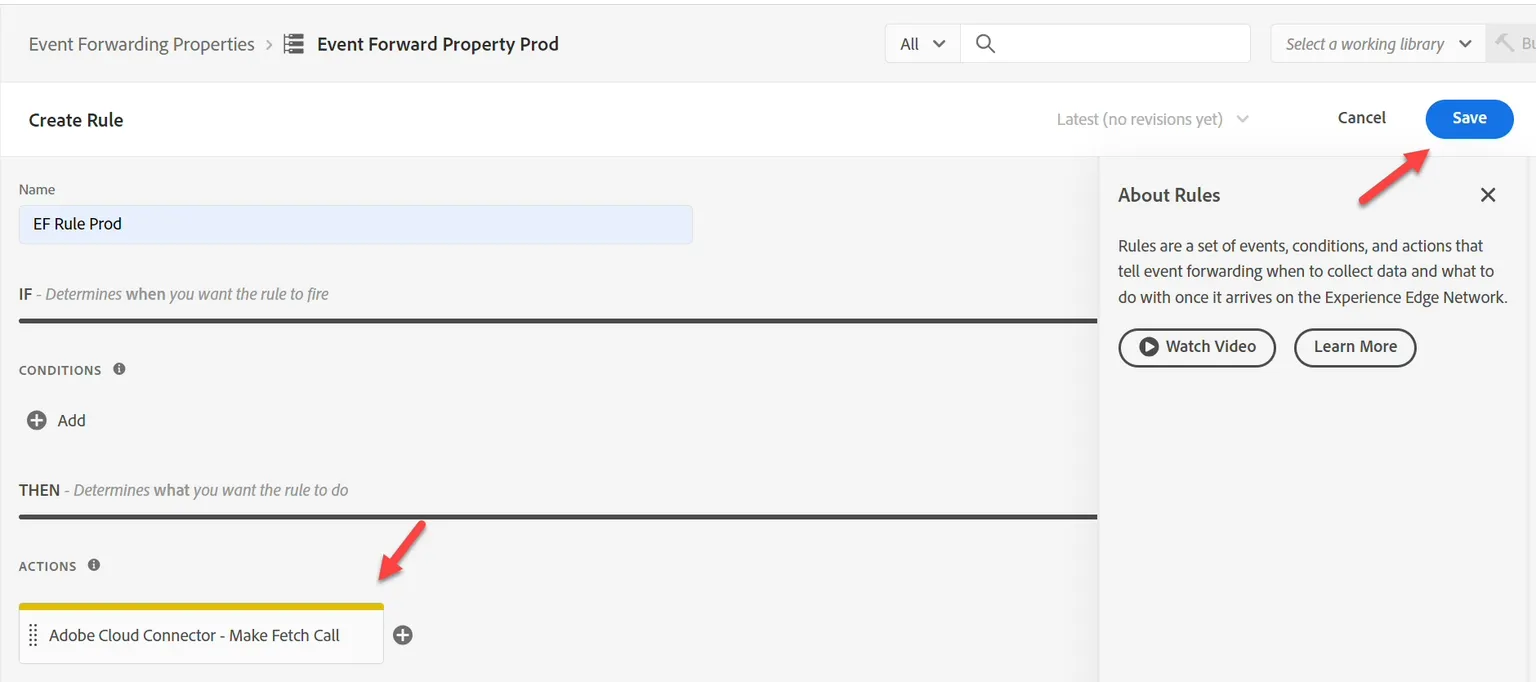
4. When done you should see your action added to your rule. Click Save to continue.
When we forward an Experience Event, we are sending the Event, not the Profile, nor any of its attributes, including any Audience Qualifications (even if it is an Edge Audience).
This happens for speed purposes.
Publish the Changes
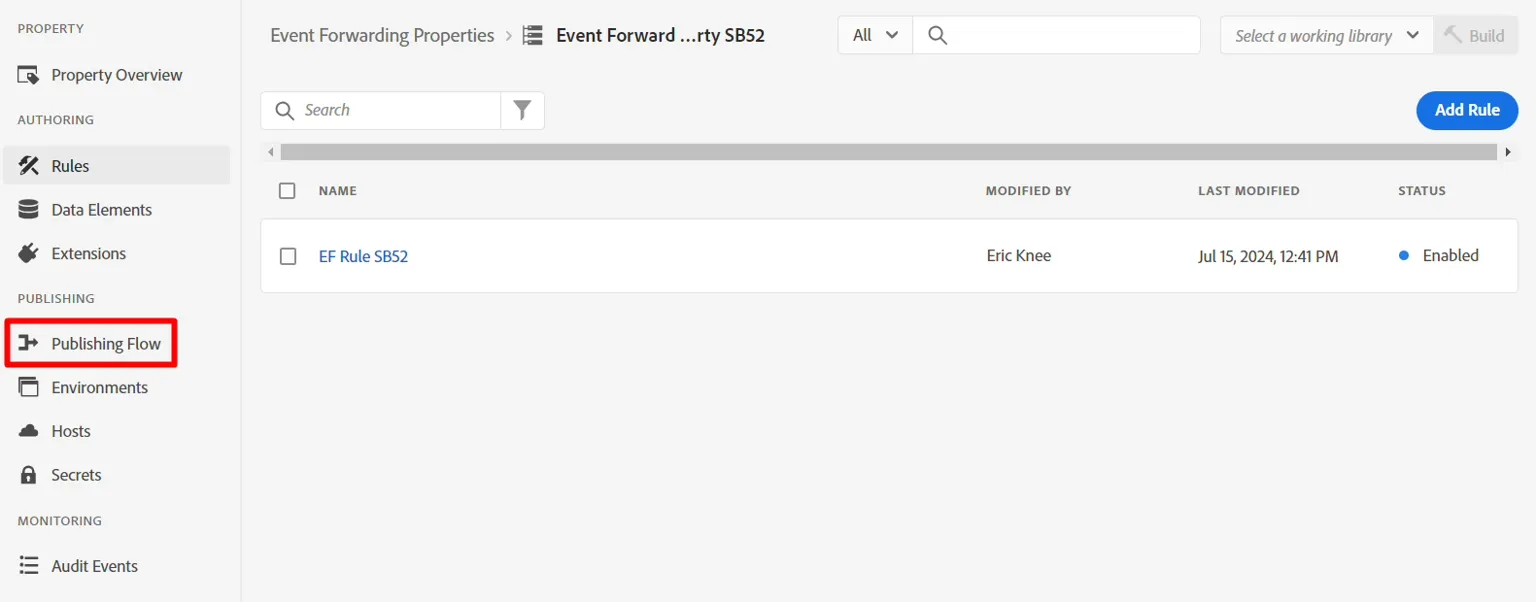
- In the left rail click on Publishing Flow
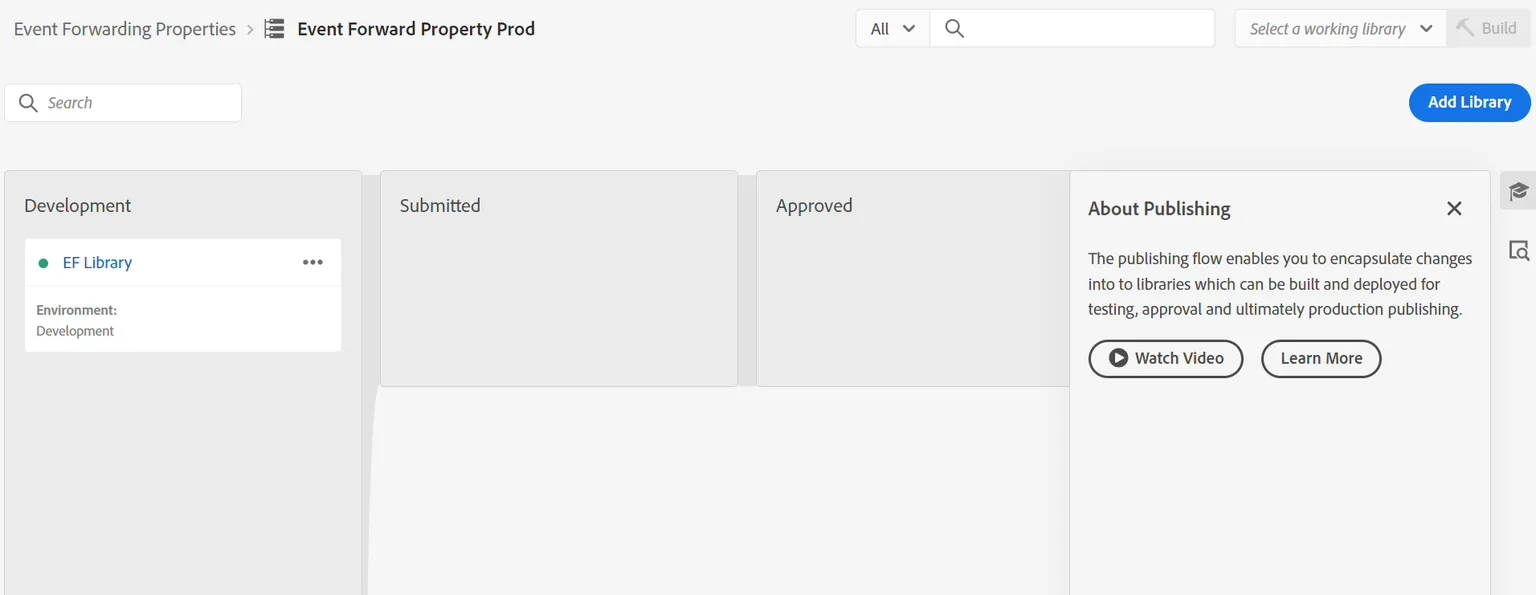
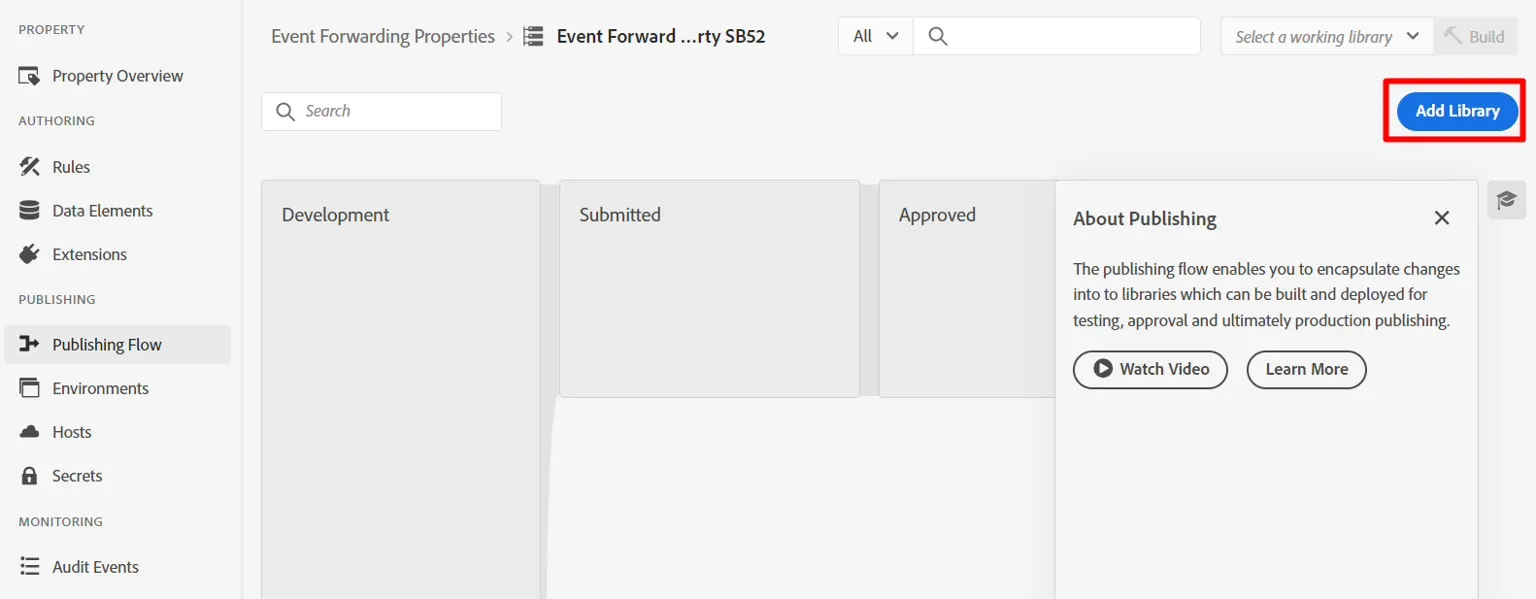
2. Click on the button Add Library
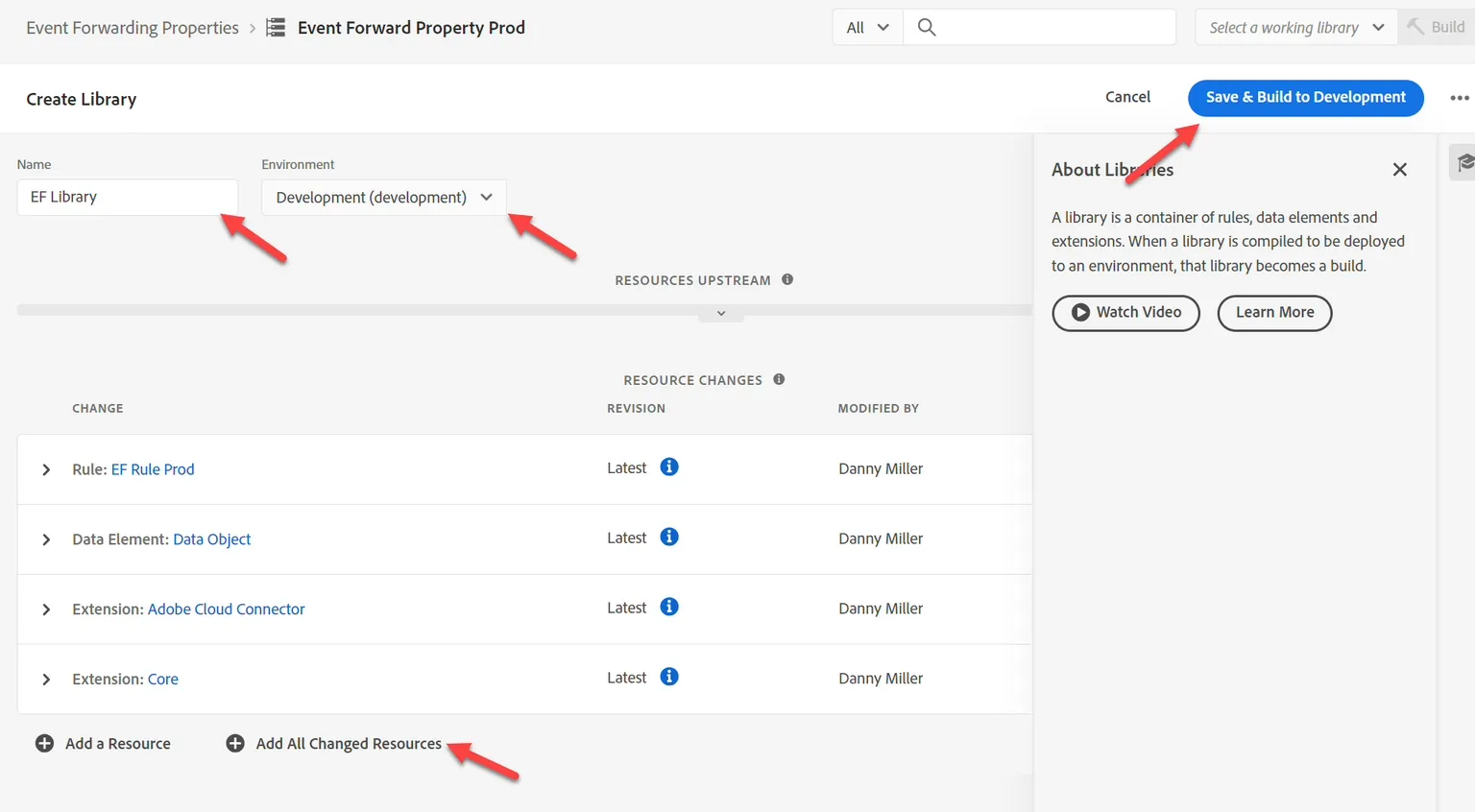
3. Configure the library with the following information:
- Name -> EF Library
- Environment -> Development
- Click on Add All Changed Resources
When done your screen should look similar to the below screenshot. If everything looks good click on the Save & Build to Development button
4. You should then see the development build go green stating its ready to use