Environment File
Postman Environment File
This file should already be on your desktop. It is included here as a backup if you cannot locate the file on your desktop.
Import Environment File
In Postman on your local machine, navigate to Collections on the left rail, click on the Import button within your workspace.
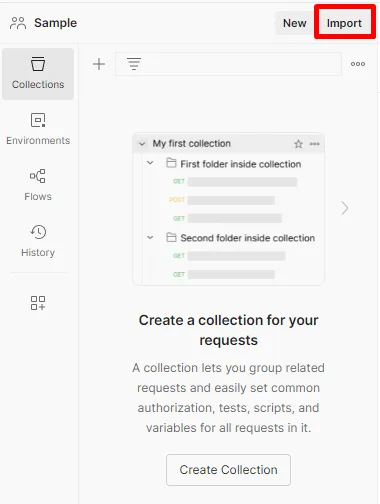
If you see this when you click on Import its telling you that you need to create an account which should have done in the Postman Overview section
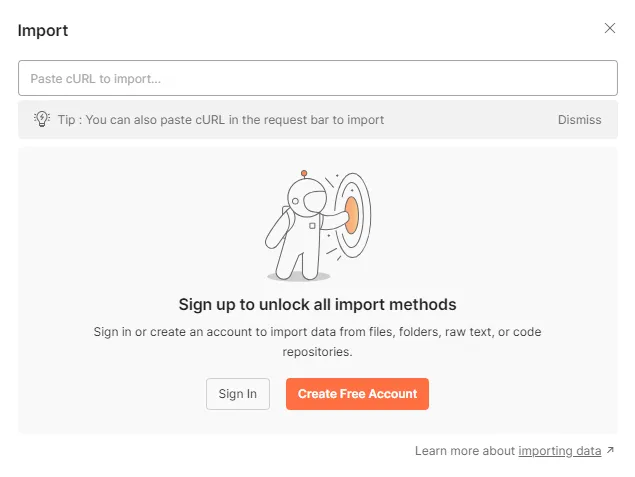
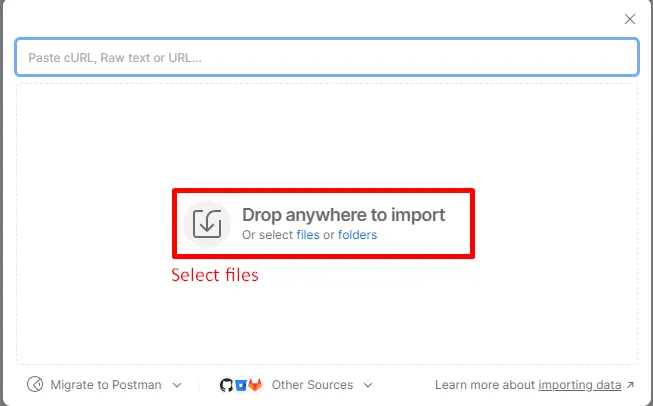
On the resulting screen click on files as shown below
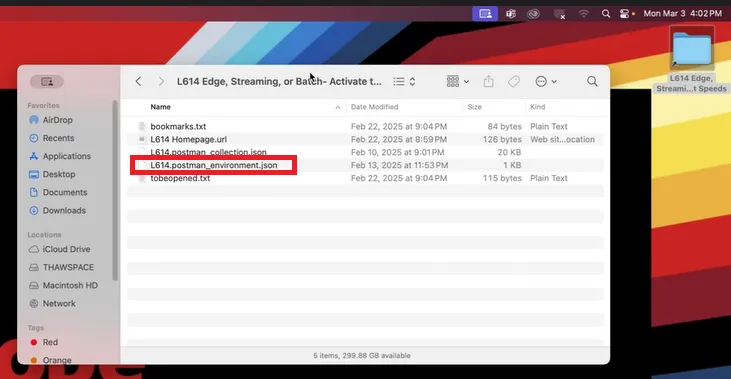
Navigate to the directory on your desktop titled L614 Edge, Stream... and select the file L614.postman_environment.json and double click it to import it.
Its important you import the right file so double check before you double click it.
Once imported, you can validate your environment file exists by clicking on the Environments tab in the left sidebar. You should see something similar to below.
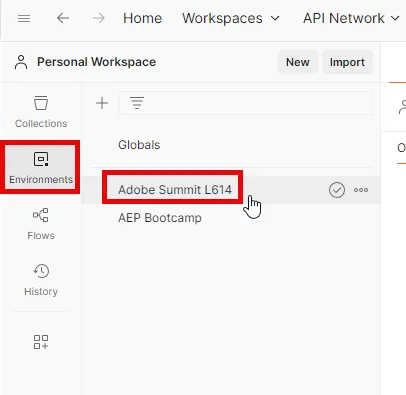
Update Sandbox Environment Variable
Before you can make any API calls in the lab you will need to update the environment file with your sandbox name.
Click on the Environments tab in the left sidebar of Postman and then select the Adobe Summit L614 environment
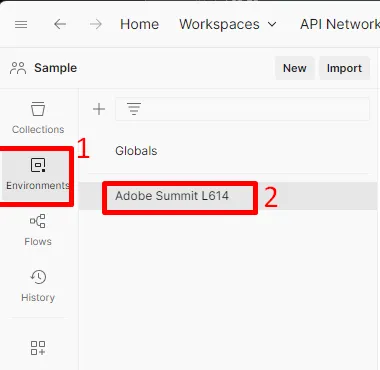
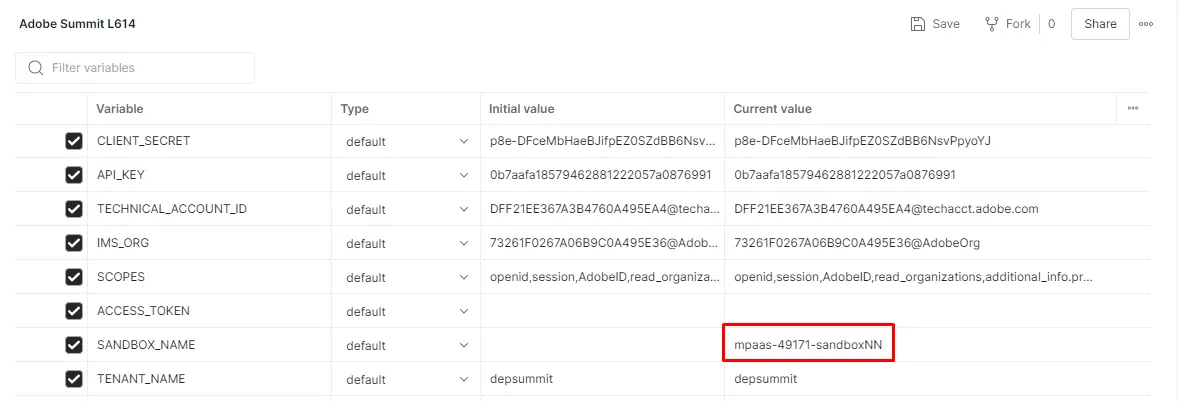
Locate the variable titled SANDBOX_NAME in the environment file and update the Current value to like so:
- Your SANDBOX_NAME should look like mpaas-49171-sandboxNN where NN is your assigned seat number
- If you are unsure you can also copy/paste it out of the URL where you see sname:

This is what your environment file should look like once you have the sandbox name populated
Next save your updates to the Environment file by clicking the Save button in the top right as shown below
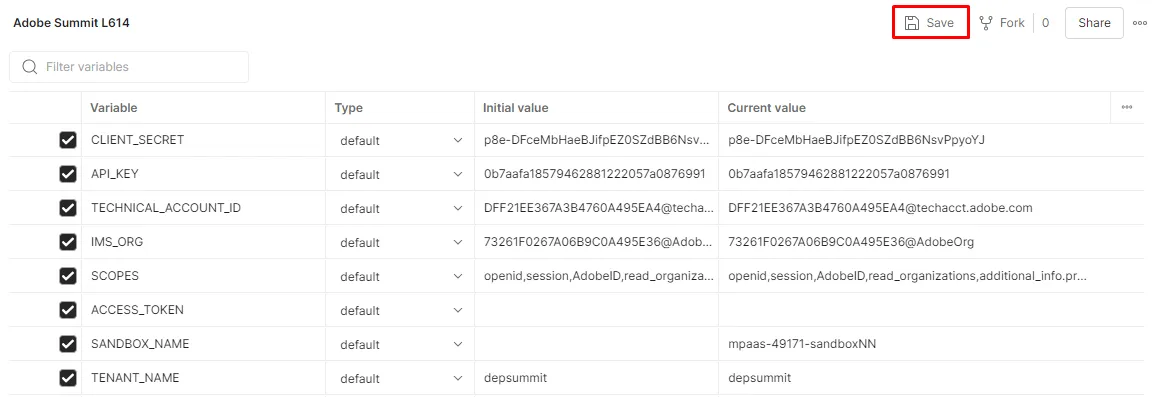
Ensure you save before continuing or you will encounter errors during labs
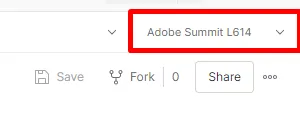
Next ensure you select your Environment from the Postman Environment drop as show below
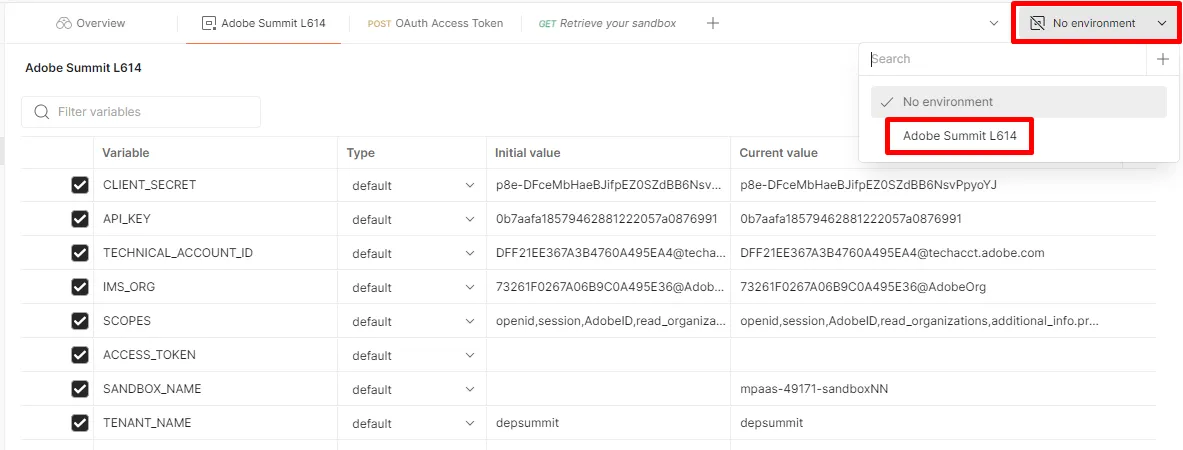
You will know you selected your Environment correctly if you the dropdown looks like this
Congratulations! You have completed your Postman Environment configured