Run the Workflow
Objective
In the next few steps you will learn how to test your workfow and more importantly your SMS activity using test mode.
Verify Workflow
- The final workflow should look something like below when you are done. Double check everything looks good. You should see

- If you haven't already stopped your workflow ensure you do so now by clicking the Stop button in the upper right.

Optionally you can try clicking on the Restart button but its likely you will see an error since you've added activities since the workflow and its cache is no longer valid.
- Next click the Start button to execute and test the workflow end to end

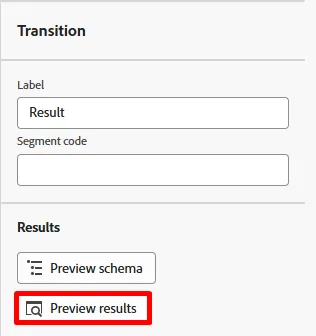
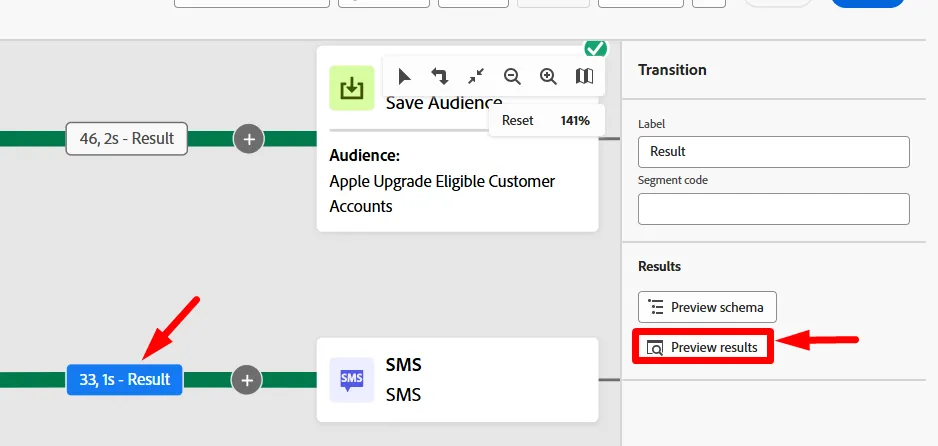
- Review the result coming into the SMS activity by clicking on Result (there are two Results so use the left one as shown below) and then in the left rail clicking on Preview results button.

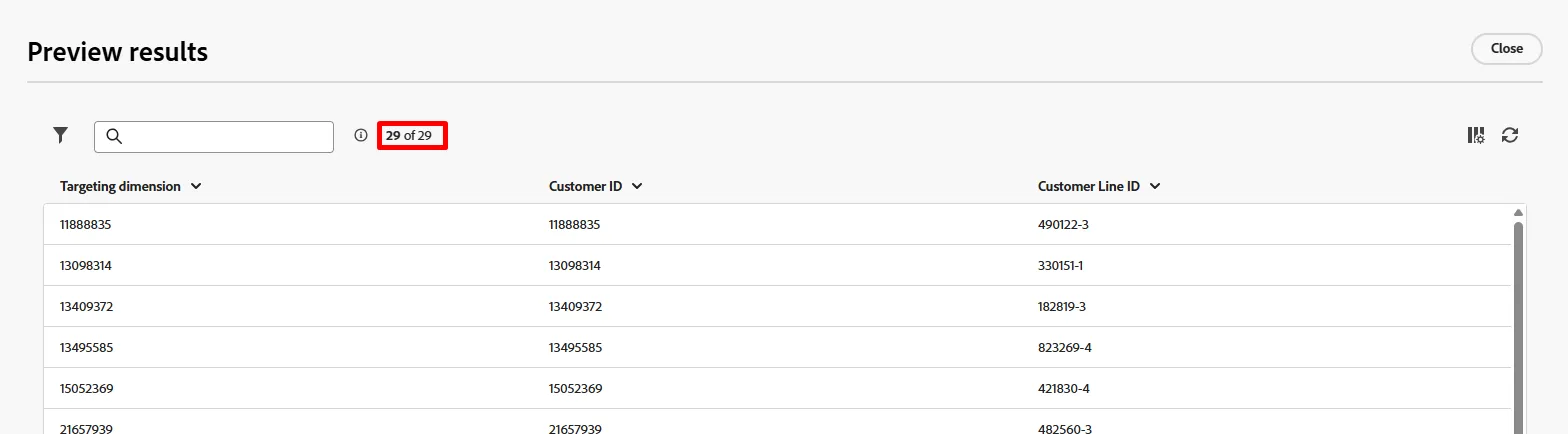
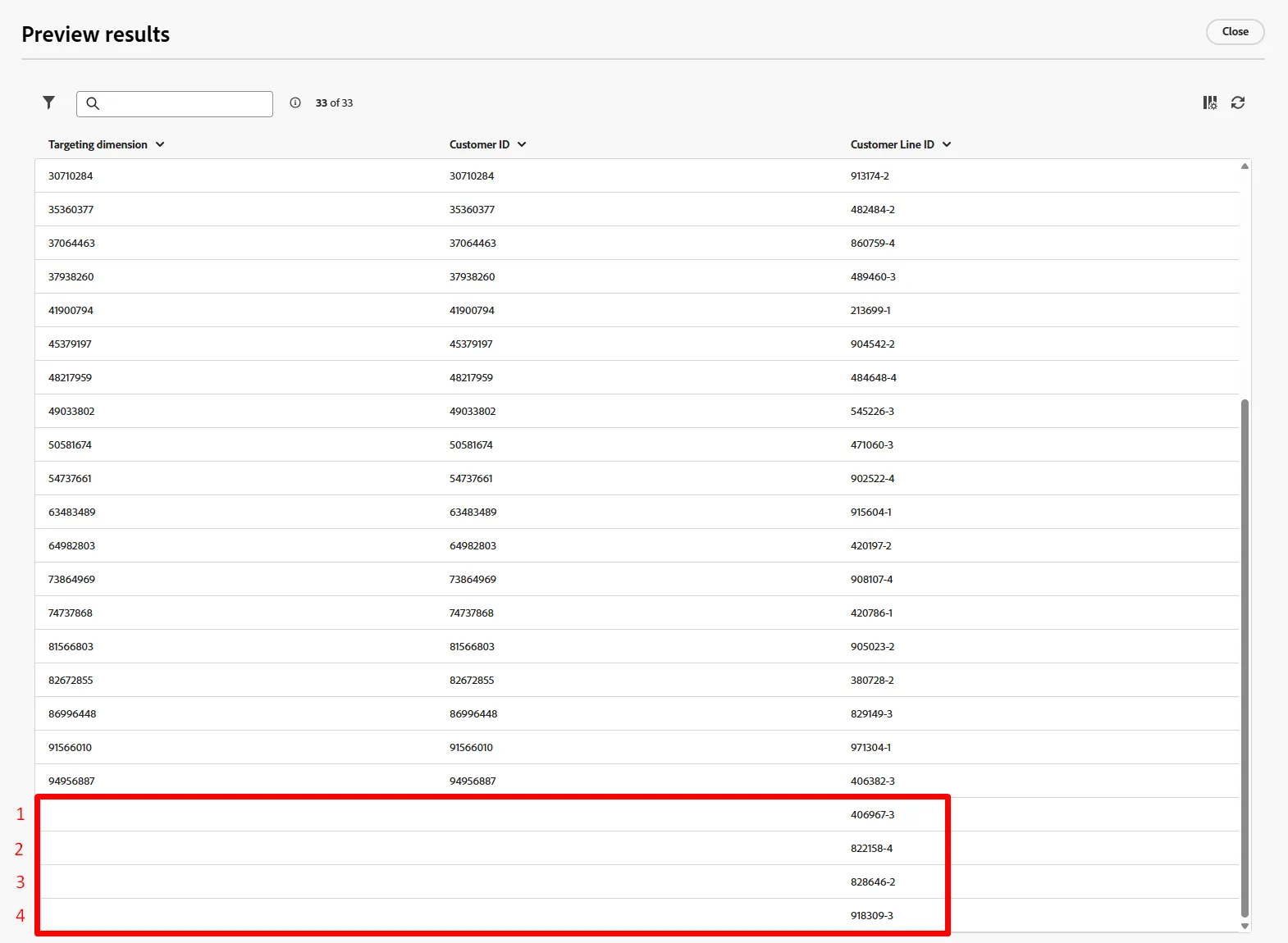
- You should see 33 records and the targeting dimension matches the Customer ID (the join key if you will to profile)
Test the SMS Activity
- Close out of the previous window and click on the SMS activity and then click the Run test button in the right rail
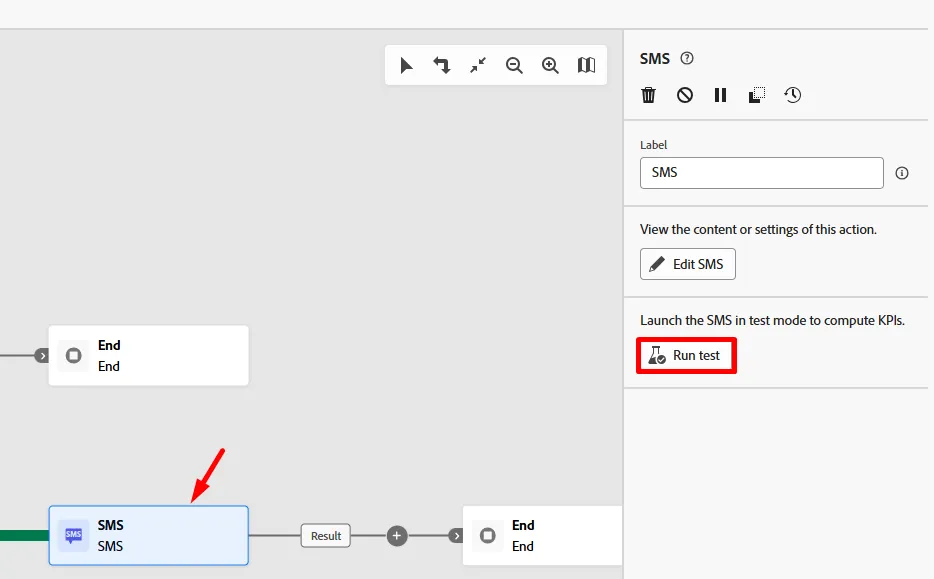
- Almost immediately you will see a new button appear labeled View report. Click the View report button to launch into the report screen.
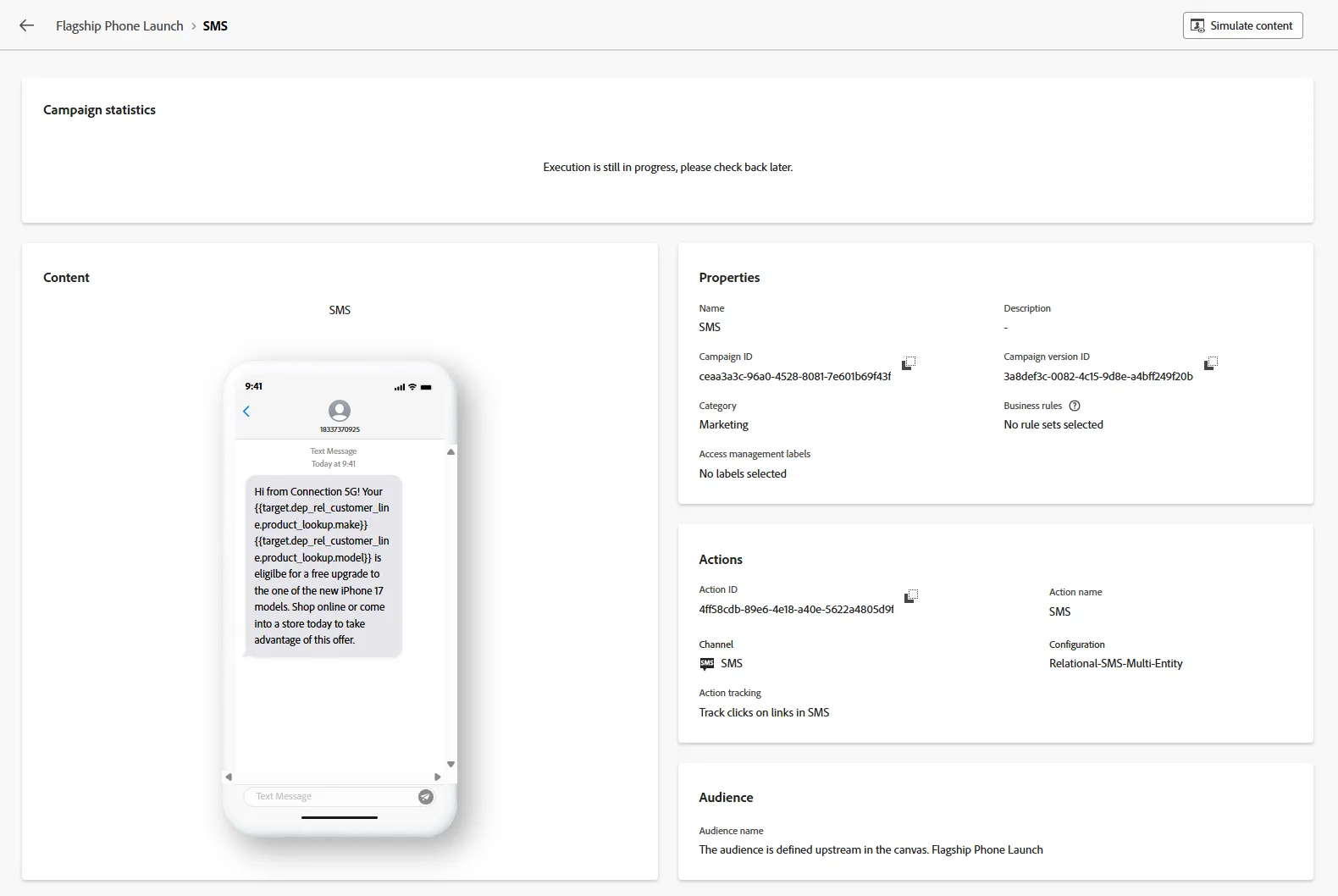
This screen will not be populated initially as it can take roughly ~10 minutes for this to complete its test. What is happening at this point is the final population coming into the SMS activity is being joined to the Real-Time Customer Profile and validated to ensure its allowed to be sent, the phone numbers are valid, consent is there, etc. The final results will include a view of how many messages are to be sent and any reasons for exclusions.
- When you do get results you should see 100% were targeted!

Wait, a minute...the incoming result was 33 records so where did the 4 go?
- Go back to the workflow canvas and click on the transition Result coming into the SMS activity and then click on Preview results in the right rail.
- In the Preview results screen scroll all the way to bottom of the table and you'll notice that 4 records have a blank Targeting dimension.
Explanation
So here is what happened.
- You had 33 customer lines that you wanted to send a SMS message
- After the change dimension activity 4 of those customer lines had no associated customer account
- The join to the Real-Time Customer Profile requires you have a Customer ID and since there is none on those 4 records there is no way to lookup a profile or create a new one on the fly
Result --> Orchestrated Campaigns drops those 4 records on message execution
There is an enhancement coming to help address this issue in two ways:
- Make sure an exclusion log is created for records that are missing a targeting dimension on send
- Update the Change dimension activity to do an inner join vs. external join which would drop those 4 records up front
Publishing the Workflow
You are not going to do this in the lab, but for context here is what happens at publication time:
- Scheduler kicks in if the campaign has a schedule set
- Save Audience activities create the audience shell within in the Audience Portal and the qualified profiles start ingesting
- Message execution starts for the first message activity in the workflow
- Profile lookups occur against the Profile snapshot
- Matching profiles honor the consent found on the profile
- Non-matching profiles are created on the fly
- Delivery logs are created in the AJO Message Feedback Event Dataset